
 United States
 United Kingdom
 Canada
 Australia
 New Zealand
 Ireland
Trevor Nace's Live Listen warning depends on whose iPhone it is
His AirPods demonstration draws an unusually fast audience, while viewers question what switching off a setting on their own phone would solve.
 Trevor Nace
Story of
Why this story? The video opened at a pace of 91,702 views a day, 18 times a normal first day on this channel (5,248).
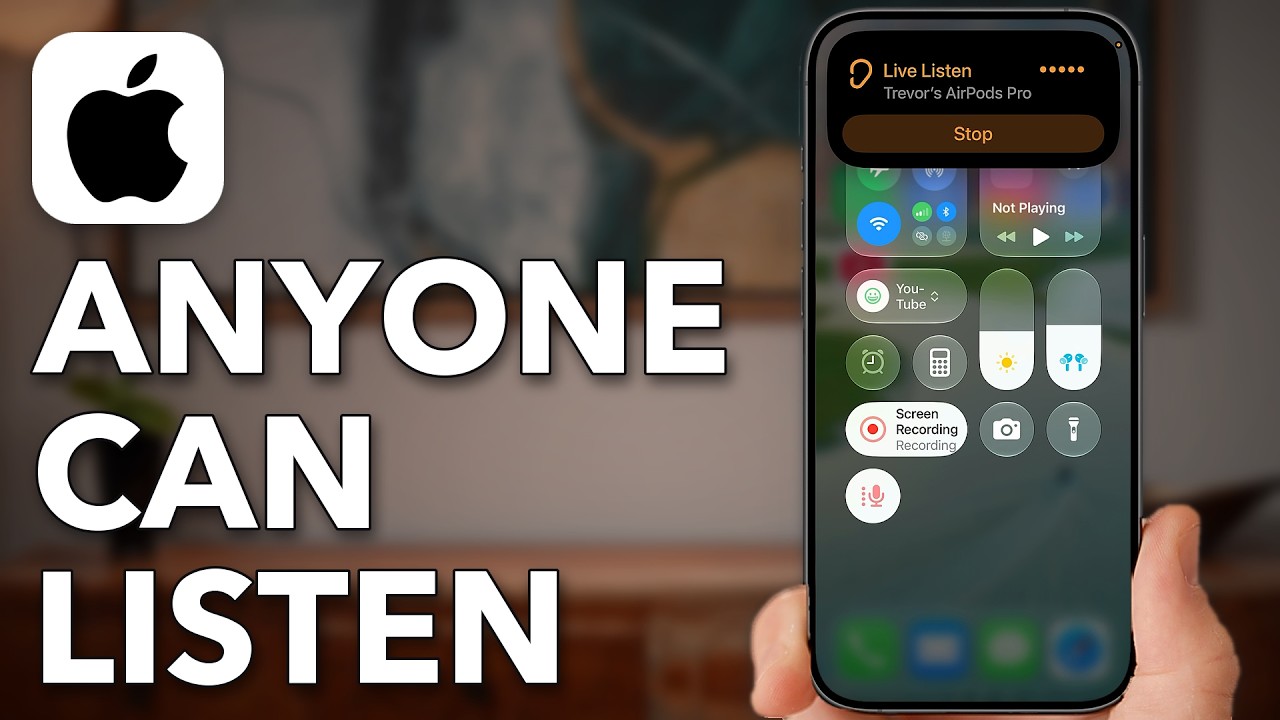 iPhone Setting Allows Anyone To Listen To Conversations Remotely
Next story: Phone Repair Guru's red iPhone makeover blocks more than it changes
Things we can learn from the video
Press to jump
- 0:34Nace adds the Live Listen shortcut to Control Center's hearing controls.
- 1:02With AirPods in, he demonstrates routing sound from the iPhone's microphone to his earbuds.
- 1:57He explains how the feature can help people hear a conversation more clearly.
- 2:49He opens Accessibility, then Audio & Visual and Live Listen, before switching off Remote Control.
- 3:13He explains that changing your own phone's setting does not stop another nearby iPhone from listening.
The phone is the microphone. Trevor Nace puts in his AirPods, activates Live Listen and demonstrates how the earbuds play what his iPhone can hear. The privacy concern he raises is about a device left near a conversation, not someone gaining access to any iPhone from anywhere.
The tutorial drew about 60,000 views in its first eleven hours, far ahead of his usual start. Its comment section is also several times busier than a typical full first day, with a practical distinction taking center stage: whose phone are you changing?
Nace shows Live Listen in Control Center before explaining its usefulness for people who have difficulty hearing. A phone closer to the speaker can send sound to compatible headphones, making the same microphone-and-earbuds arrangement helpful rather than intrusive.
Later, he navigates through Accessibility and Audio & Visual to a Live Listen setting, where he switches off "Remote Control." But, as he explains near the end, changing your own device does not disable somebody else's phone nearby.
Several viewers pick up on precisely that limit. Others question how likely someone would be to leave an expensive iPhone unattended in public, while some ask why they cannot find the options he demonstrates.
That makes the final section important to the title's broad warning: Nace's settings walkthrough concerns your iPhone, while his conversation-privacy scenario concerns another person's device.
Published on Trari
More on iPhone


Where next?


What viewers say
Nobody is leaving an unattended iPhone in a café.
@kefinkamedSee it on YouTubeIt’s very helpful for those with hearing deficit.
@ShirleyGanskeSee it on YouTubewhy would I turn it off on my device? only someone logged in to my apple account can listen to it?
@RanblvSee it on YouTube
3 more comments
My mic isn't turning on. It's not working. I press the icon and a "Live Listen" window pops up. It does nothing.
@betterstepsSee it on YouTubeI don’t have the “live listen” option on my iPhone. Won’t even come up in the search bar in settings. I see audio and visual under accessibility but no live listen option.
@RAPTUREWATCHERSee it on YouTubeThanks Trevor. you help us all with your clips. we are seniors and novices.God Bless You
@nihaldesilva3775See it on YouTube
Public comments from the video's page on YouTube
 Is this your channel?For the channel's owners and team: a ready picture and text for your audience
Share the story with your audience. Everything is ready:
For an Instagram story or a WhatsApp status
For a community post or your channel's description
- Channel
- Trevor Nace
- Subscribers
- 1,570,000 ▲ 20,000 this week
- Channel views, last 7 days
- 4,833,008
- Channel views, pace per day
- 883,120 (on a normal day: 811,131)
- Video published
- November 12, 2026
- Video views so far
- 60,256 (less than a day online)
- Video views, pace per day
- 91,702
The numbers
The Live Listen tutorial is running well ahead of Nace's usual early audience for regular videos. Comments have also exceeded his typical first-day total.

💡 Test your knowledge
Which iPhone feature does Nace demonstrate as a microphone feed for his AirPods?
Nace uses Live Listen to send audio from his iPhone's microphone to his AirPods.